OptiFine is one of the most essential mods for Minecraft: Java Edition, which for years has allowed players to increase their frames per second (FPS), reduce lag, and install shaders—drastically improving the game’s graphics. This guide shows you how to install OptiFine using its official, easy-to-use installer.
TL;DR: Download the
.jarinstaller from optifine.net, run it, click Install, and then select the new OptiFine profile in the official Minecraft Launcher.Compatibility: 1.7.2 – 1.21 • Loader: Standalone / Forge • Platforms: Win/Linux/macOS
What is OptiFine?
OptiFine is a modification that optimizes Minecraft’s graphics engine. It offers dozens of detailed video settings that are missing in the vanilla version of the game. Its main features include support for shaders, dynamic lighting, better textures (e.g., connected glass), and a significant performance boost, especially on lower-end computers.
Why use OptiFine?
The main advantage is a huge increase in game smoothness (FPS) and the ability to install shaders, which can turn Minecraft into a visual masterpiece. It’s an indispensable tool for anyone who wants to customize graphics to their needs—from maximum performance to photorealistic views. It’s free, safe, and has been in development for over a decade.
Requirements
- Java installed (if the installer doesn’t run). It is usually bundled with modern versions of the Minecraft Launcher.
- The official Minecraft Launcher and the version of the game you want to install OptiFine on must have been run at least once.
- Write permissions for the
.minecraftfolder.
Quick Start (3 steps)
- Download: The OptiFine
.jarinstaller file from the official website (link below). - Install: Run the downloaded
.jarfile and click theInstallbutton. - Launch: In the Minecraft Launcher, select the profile named OptiFine and click Play.
Step-by-step
Step 1 — Get the files
- Go to the official website optifine.net/downloads.
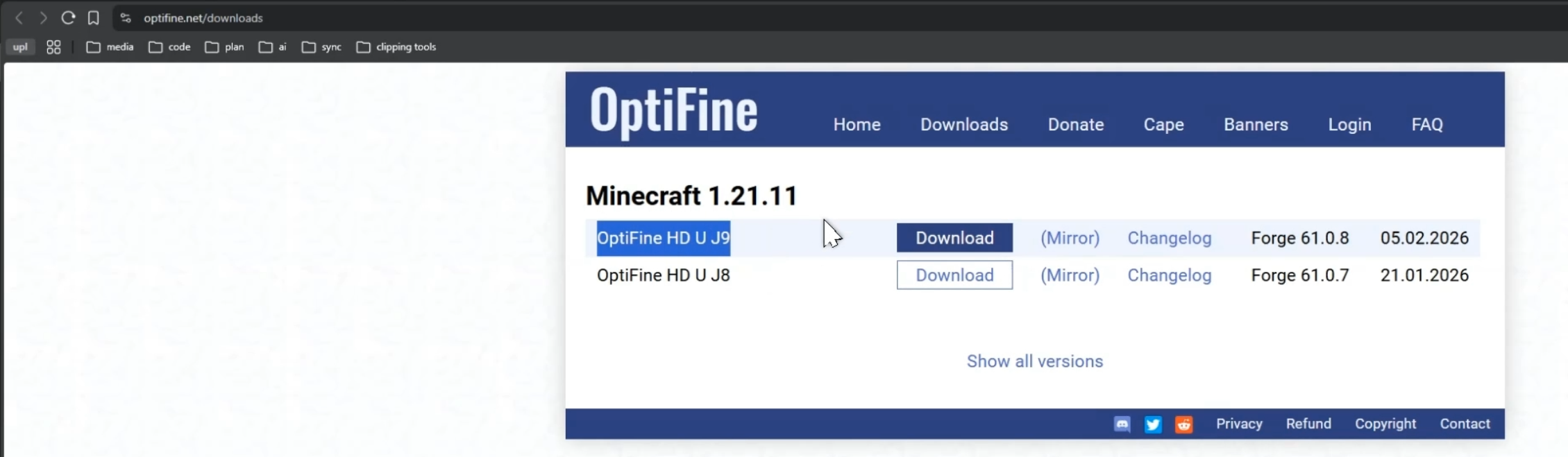
- Find the Minecraft version you’re interested in (e.g., 1.21) and click the Download button. Sometimes you need to click “(Mirror)” first to bypass ads.
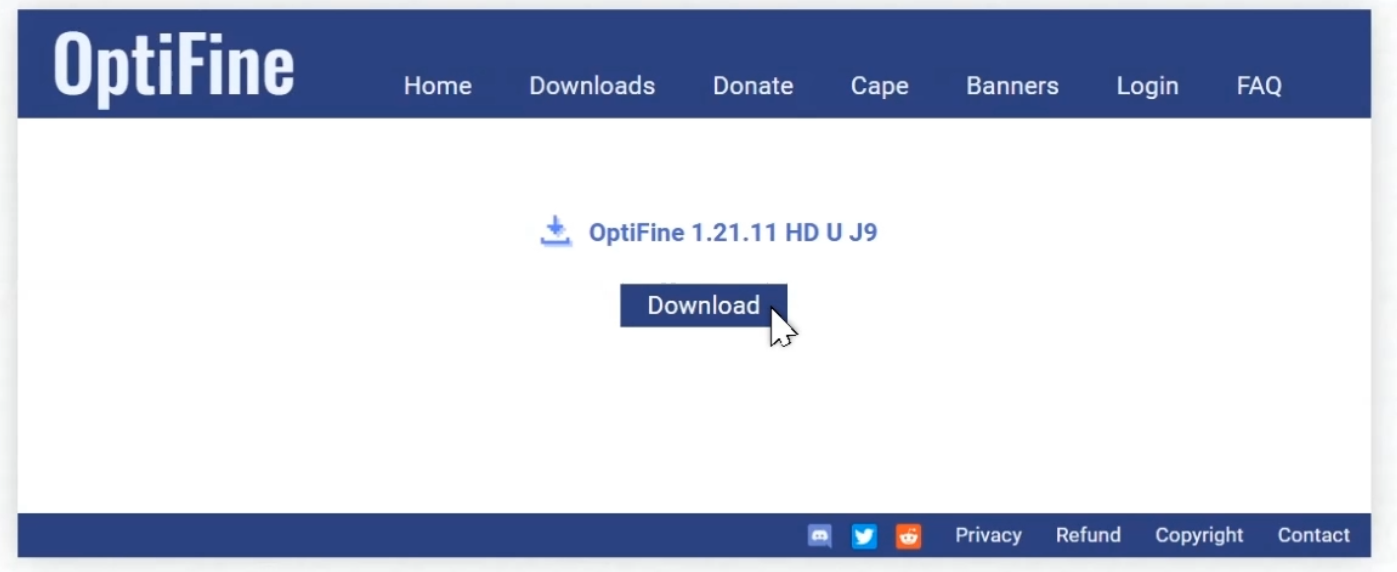
- Save the file with the
.jarextension to your computer.
Step 2 — Run the installer
- Locate the downloaded
OptiFine_..._HD_U_....jarfile and run it by double-clicking it. - A small installer window will appear. The path to the
.minecraftfolder should be detected automatically.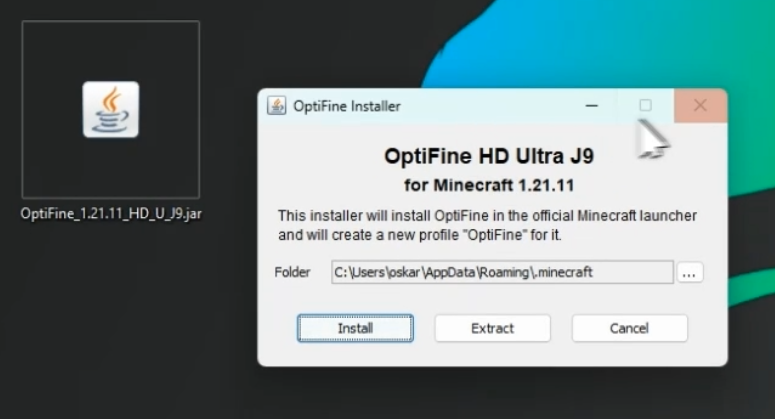
- Click the Install button. After a few seconds, you should see a message confirming successful installation.
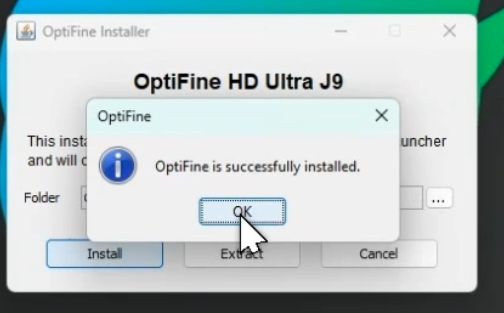
If the
.jarfile does not run, it might mean you don’t have Java installed, or.jarfiles are opened by another program by default (like WinRAR). In this case, right-click the file → Open with… → and select Java(TM) Platform SE binary.
Step 3 — Launch in your launcher
- Open the official Minecraft Launcher.
- Next to the “Play” button, you will find a list of profiles. Expand it and select the one named OptiFine.

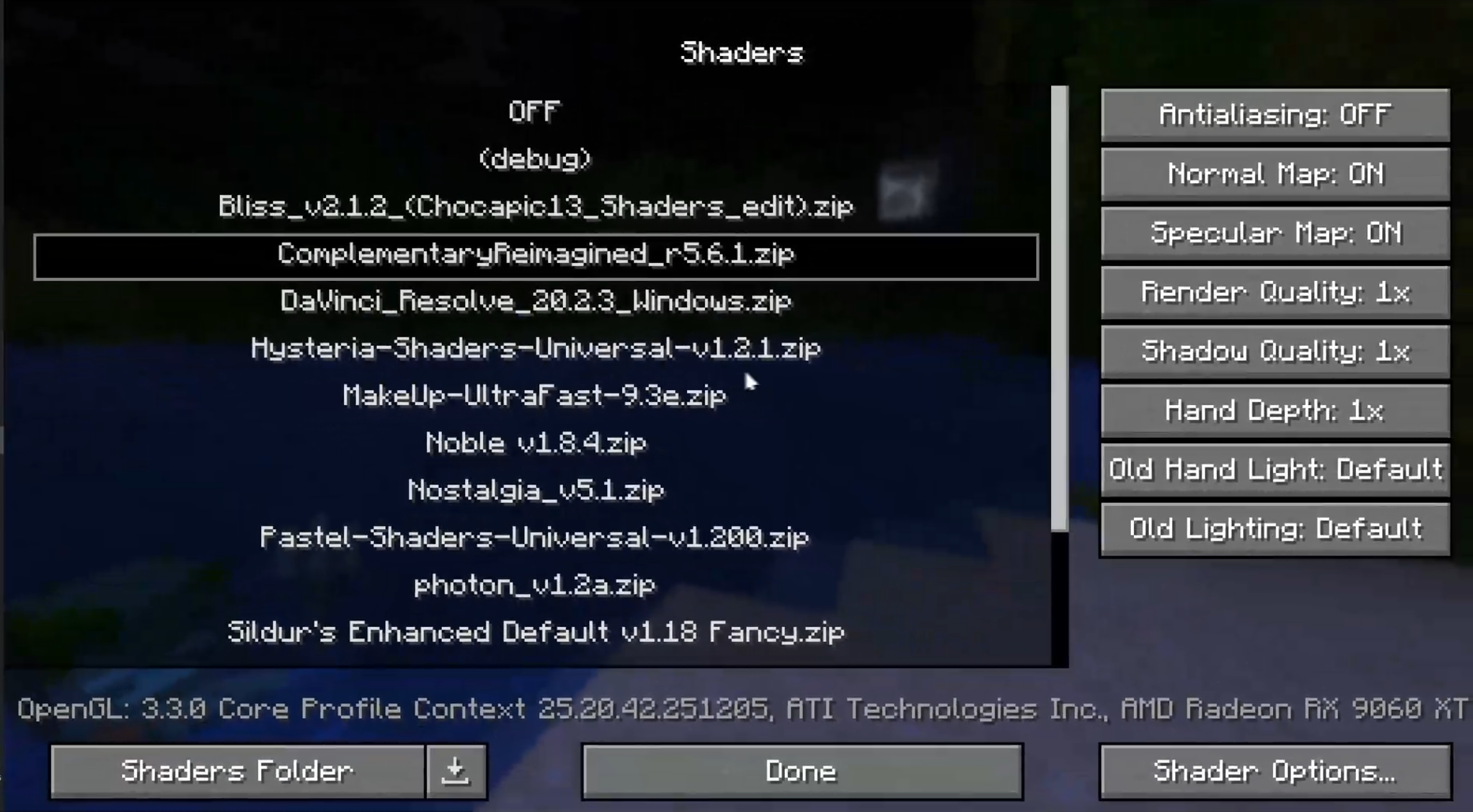
- Click Play. The game will start with OptiFine loaded, which you can confirm by the additional options in the Options → Video Settings… menu.
Common issues & fixes
- The game crashes on start: Make sure you have downloaded the OptiFine version that matches your Minecraft version. Also, check if you have any incompatible mods in your
modsfolder. - I don’t see the “OptiFine” profile in the launcher: Restart the launcher. If that doesn’t help, check if the OptiFine profile is visible in the “Installations” tab in the launcher. If not, repeat step 2.
- The installer shows a “Cannot find Minecraft…” error: Run the “clean” version of Minecraft you are trying to install OptiFine on at least once, so the launcher downloads all the necessary files.
Uninstall / revert
- Open the Minecraft Launcher and go to the “Installations” tab.
- Hover over the OptiFine profile, click the three dots, and select “Delete”. That’s it. OptiFine does not modify the original game files.
Video guide

Downloads & Links
- Download OptiFine (Official Site) — Always download from the official source.