
Fabric is a modern, lightweight mod loader for Minecraft: Java Edition that lets you run thousands of mods—from performance enhancers like Sodium to major content additions. This guide will show you how to install it in a few simple steps.
TL;DR
Download the installer from fabricmc.net, run it, select your game version, click Install, and you’re done. A new fabric-loader profile will appear in your Minecraft launcher, which you can use to play with mods.
Requirements
- Minecraft: Java Edition: You must have the game installed and have run the version you want to mod at least once.
- Java: Modern Minecraft launchers typically bundle their own version of Java. However, if the
.jarinstaller doesn’t run, you may need to install Java from the official website.
Step-by-Step: Fabric Installation
Step 1: Download the Fabric Installer
Navigate to the official Fabric download page:
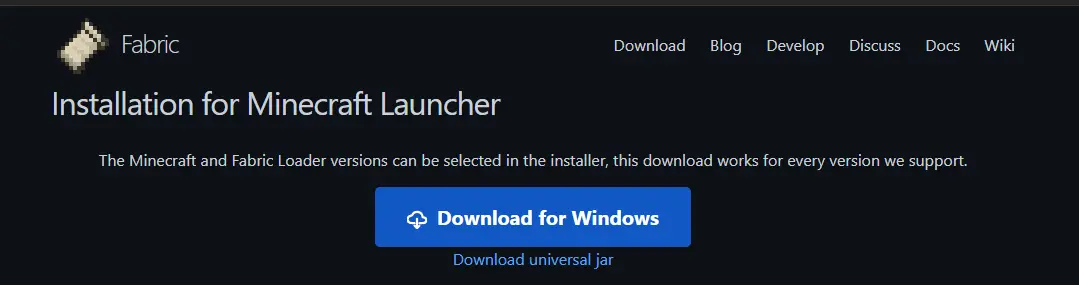
You have two options:
- Download for Windows (.exe): A simpler option for Windows users.
- Download universal jar: Works on any OS (Windows, macOS, Linux) but requires Java to be installed. This is the recommended option.
Step 2: Run the Installer
Find the downloaded file and run it with a double-click.
- If the
.jarfile doesn’t open as a program, right-click it, selectOpen with, and chooseJava(TM) Platform SE Binary. - As a last resort, you can run it from a terminal/command prompt with the command:
java -jar fabric-installer-XXXX.jar(replacing XXXX with the version number).

Step 3: Configure and Install
When you run the installer, you’ll see a simple window:
ClientTab: Make sure you are on this tab (it’s the default).- Minecraft Version: Select the game version you want to play with mods (e.g.,
1.21). - Loader Version: Leave the default, latest version selected—it’s usually the best one.
- Install Location: The installer should automatically detect your
.minecraftfolder. Don’t change this path unless you use a custom directory. - Click the
Installbutton.
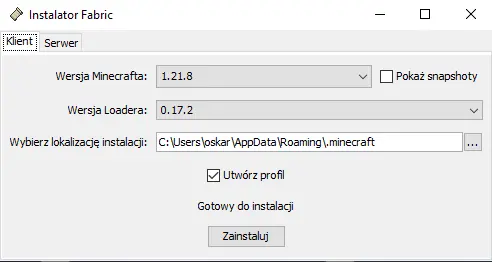
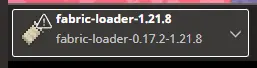
After a few seconds, you’ll see a success message. You can now close the installer.
Step 4: Launch the Game with the Fabric Profile
- Open the official Minecraft Launcher.
- In the bottom-left corner, next to the
PLAYbutton, you’ll see a list of profiles. Select the one namedfabric-loader-[version-number]. - Click
PLAY.
The game will now launch with the Fabric environment loaded. On the main menu screen, you should see “Fabric” mentioned in the bottom-left corner.
What’s Next? Adding Mods
Installing Fabric itself doesn’t change gameplay. Its purpose is to load mods.
To add mods:
- Navigate to your game directory (
%appdata%\.minecrafton Windows). - Find or create a folder named
mods. - Paste your downloaded mods (.jar files), such as Fabric API, Sodium, or Iris, into this folder.

Troubleshooting
- The installer won’t open: Make sure you have Java 17 or newer installed on your system.
- The Fabric profile doesn’t appear in the launcher: Check that the installation path in the installer was correct. Try running the installation again.
- The game crashes on launch: This usually means you’re missing Fabric API (required by most mods) or one of your mods is incompatible with your game version.

Downloads & Links
- Fabric API — Required by most mods
- Official Fabric Website — This is where you can find the latest version of the Fabric Loader installer.
- Java (if needed) — Fabric requires Java. The new Minecraft launcher includes it, but if you run into issues, download it here.