
This guide explains how to install the Forge mod loader and add any modifications to it in Minecraft: Java Edition. The process is universal and works for almost any game version, from the latest 1.21 to the classic 1.12.2, only requiring the corresponding version of the Forge installer.
TL;DR: Download and run the Forge installer, then drop your downloaded mod
.jarfiles into themodsfolder in your main game directory (.minecraft). Finally, select the Forge profile in the launcher and play. Compatibility: 1.21, 1.20.x, 1.19.x, 1.18.x, 1.16.5, 1.12.2 and more • Loader: Forge • Platforms: Win/Linux/macOS
What is Forge?
Minecraft Forge is a free, open-source application programming interface (API) and mod loader that allows mod creators to easily create and integrate new content with Minecraft: Java Edition. For players, it is an essential tool for running thousands of mods, from simple tweaks to complex modifications that overhaul the entire gameplay experience. Forge manages compatibility between mods and ensures the game runs smoothly.
Why use Forge?
Forge has been the standard in the Minecraft modding world for years. Its biggest advantages are the vast library of compatible mods and its stability. If you want to play with the most popular mods, such as Just Enough Items (JEI), Biomes O’ Plenty, or Create, Forge is the most reliable choice. It is an ideal solution for both beginners and advanced players looking to expand their Minecraft experience.
Requirements
- Minecraft: Java Edition
- Java installed (Java 17 or newer is required for recent MC versions).
- Write access to the
.minecraftdirectory.
Quick Start (3 steps)
- Download and install: Go to the official Forge website, download the installer for your Minecraft version, and run it, selecting the “Install client” option.
- Add mods: Move your downloaded mod files (with a
.jarextension) into themodsfolder located in%appdata%\.minecraft\(Windows). - Launch the game: Open the Minecraft Launcher, select the automatically created “Forge” profile, and click Play.
Step-by-step instructions
Step 1 — Download and install Forge
- Visit the official website at files.minecraftforge.net.
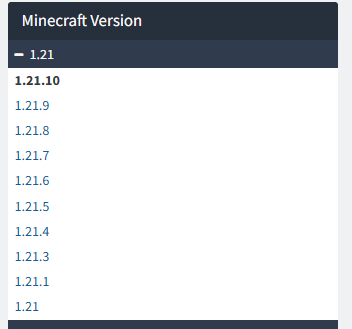
- In the left-hand menu, select the Minecraft version you want to play (e.g., 1.21).
- Download the recommended version of the installer by clicking the “Installer” button.
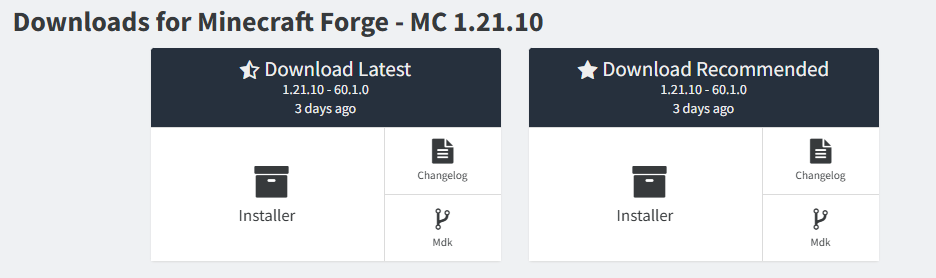
- You will be redirected to an ad page. Wait a few seconds and click the “Skip” button in the top right corner.

- After downloading, run the
.jarfile (if your system doesn’t open it, right-click -> Open with -> Java).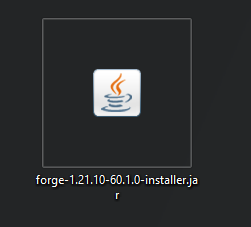
- In the installer window, make sure the Install client option is selected and click “OK”. The installer will automatically download the necessary files and create a new profile in your launcher.
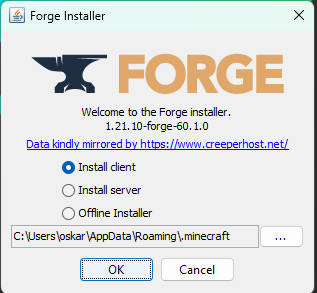
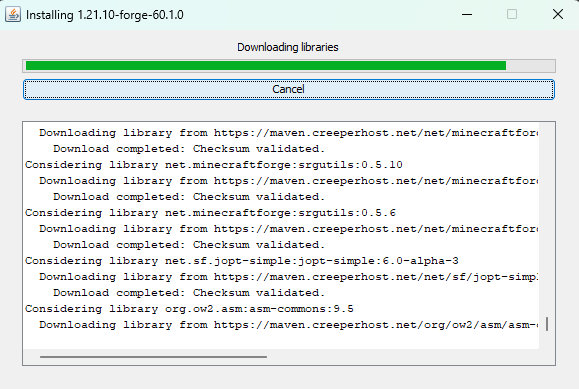
- Once finished, you will see a success message.

Step 2 — Place mods in the mods folder
- Find your main game directory. The easiest way is:
- Windows: Press
Win + R, type%appdata%\.minecraft, and press Enter. - Linux: Navigate to
~/.minecraft. - macOS: Navigate to
~/Library/Application Support/minecraft.
- Windows: Press
- After installing Forge, a folder named
modsshould appear in this directory. If it’s not there, create it manually (remember to use lowercase). - Download the mods you want to use (e.g., from CurseForge or Modrinth). Ensure they are compatible with your version of Minecraft and Forge.
- Move the downloaded
.jarmod files directly into themodsfolder.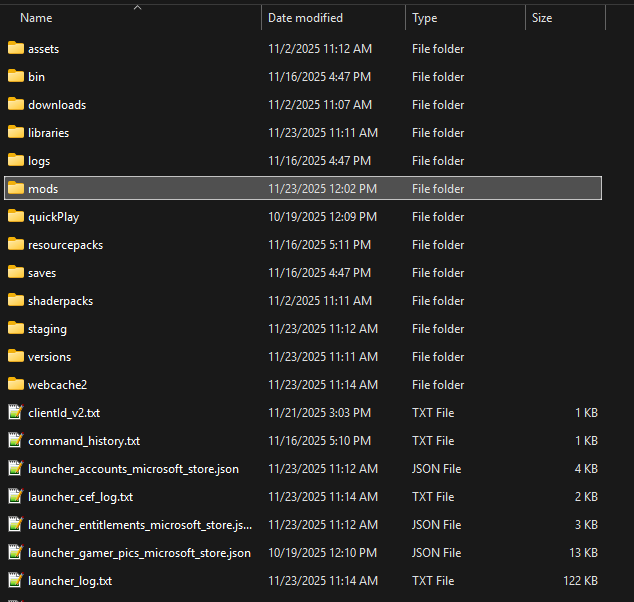
Step 3 — Launch the game with the Forge profile
- Open your standard Minecraft Launcher.
- Next to the “Play” button, you will find a list of profiles. Select the profile named “Forge”. It is usually selected automatically after installation.
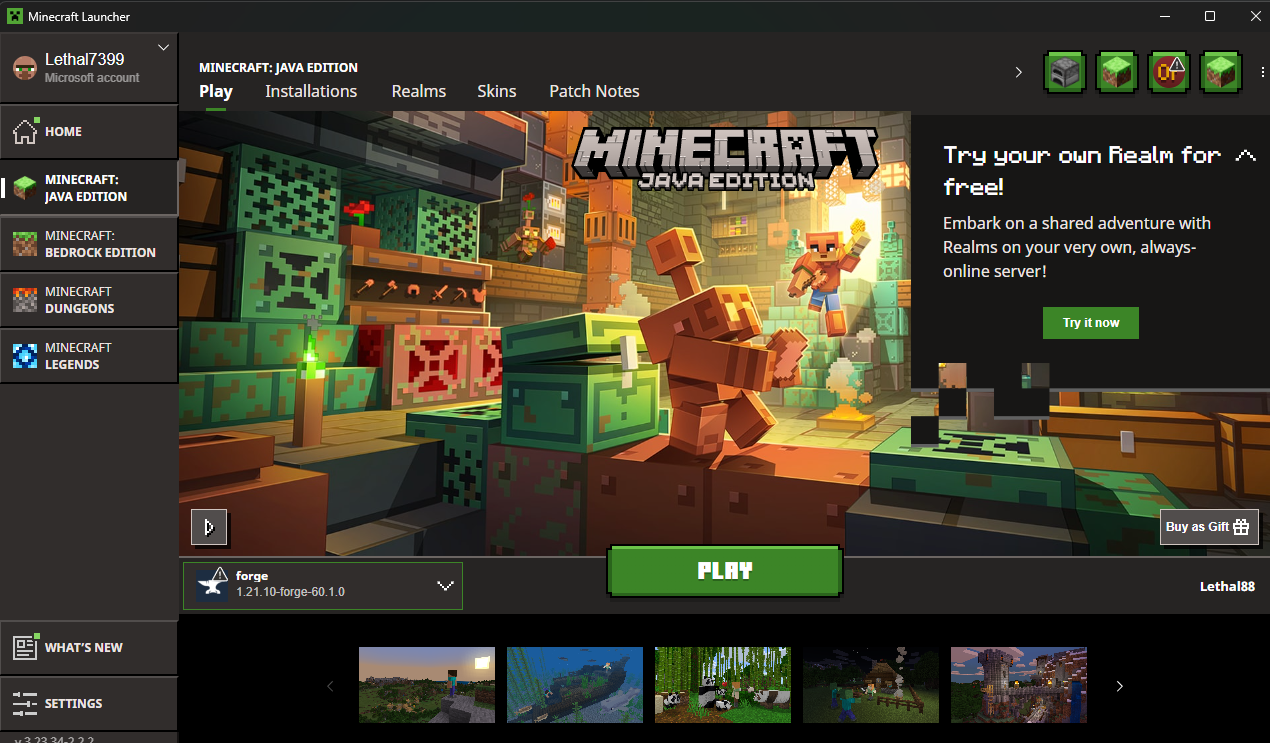
- Click Play. The game will start, loading all the mods placed in the
modsfolder.
Common issues & fixes
- Game crashes on startup: Check if all your mods are for the same Minecraft version as your installed Forge. Sometimes mods also require additional libraries (other mods), which is usually stated on the download page.
- Forge installer won’t run: Make sure you have the correct version of Java installed. You can also try running it from the terminal with the command
java -jar installer_name.jar. - The
modsfolder is missing: If Forge installed correctly but themodsfolder is missing, simply create it manually in the.minecraftdirectory.
Uninstallation
- To stop using mods, simply switch to a standard profile in the launcher.
- To completely remove Forge, go to the “Installations” tab in the launcher, find the Forge profile, and delete it. You can also delete the Forge files from the
versionsfolder in your.minecraftdirectory. - To remove mods, just delete their
.jarfiles from themodsfolder.

Downloads & Links
- Download Forge — Official site
- Download mods (CurseForge) — Largest mod database
- Download mods (Modrinth) — A modern alternative