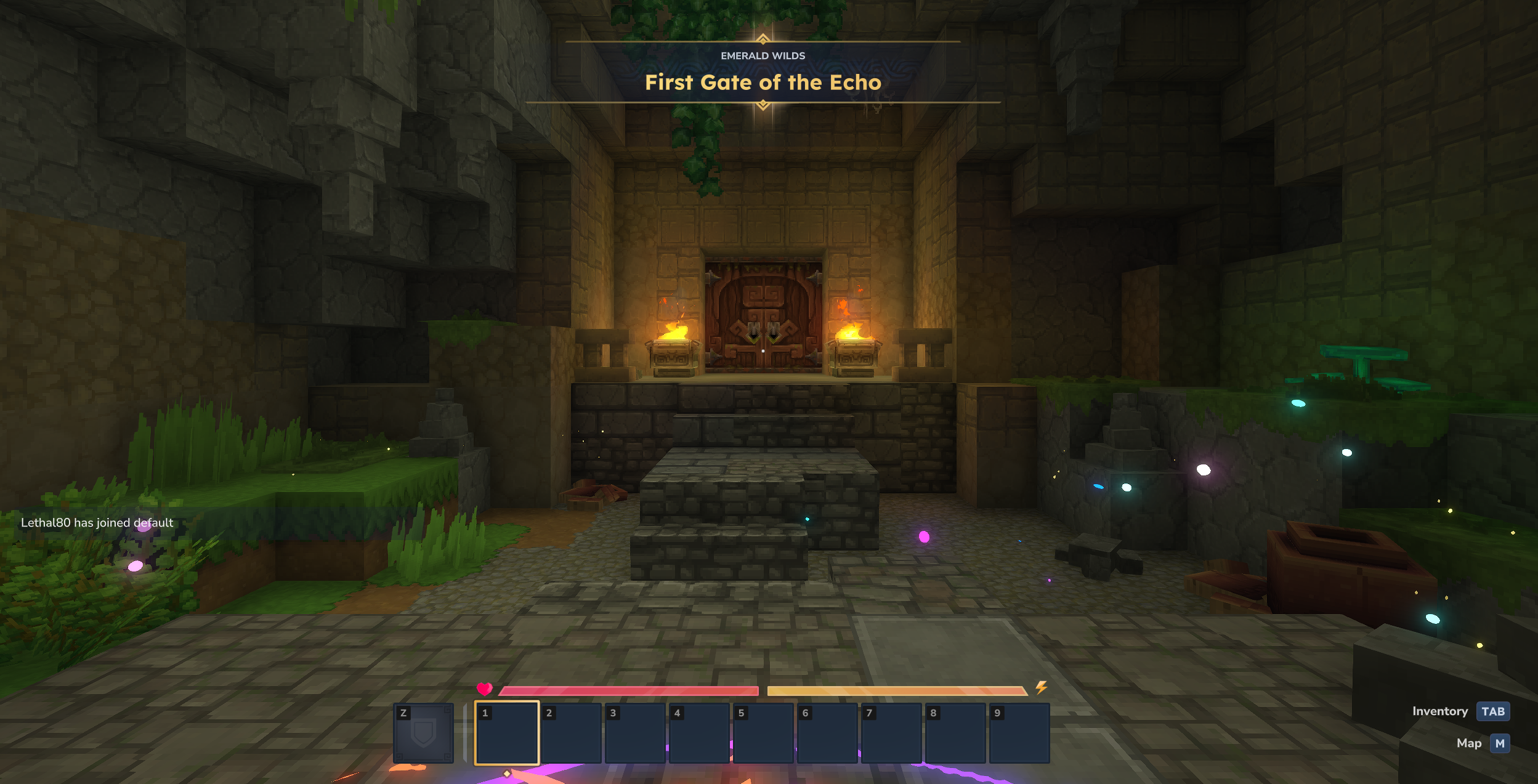
Want to explore the world of Orbis with friends? Host your own private Hytale server locally and expose it safely to the internet using playit.gg. No port forwarding required!
TL;DR
- Download server files from
downloader.hytale.com. - Extract and run
start.bat. - Authenticate with your Hytale account.
- Install the playit.gg agent to share the connection.
Requirements
- Java: Ensure you have a compatible Java version installed. We recommend Java 25 or newer for the best compatibility.
- Hytale Account: You need access to the game.
- RAM: At least 6GB free for the server process.
Quick Start
Click the button below to download the official Hytale Downloader:
Extract the zip file, open the folder, and run start.bat to begin.
Step-by-step Guide
1. Download and Extract
First, grab the server files.
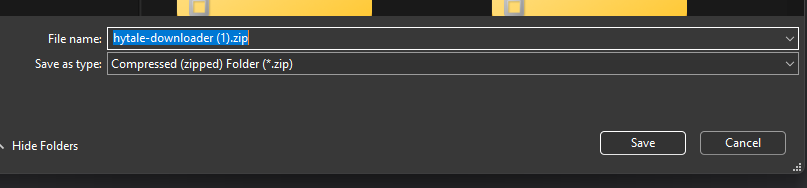
- Download
hytale-downloader.zipusing the link above. - Open the downloaded archive.
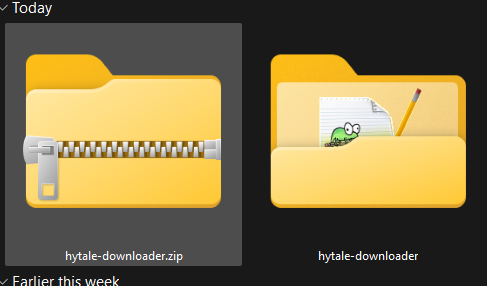
- Extract all files to a new folder on your desktop or preferred location.
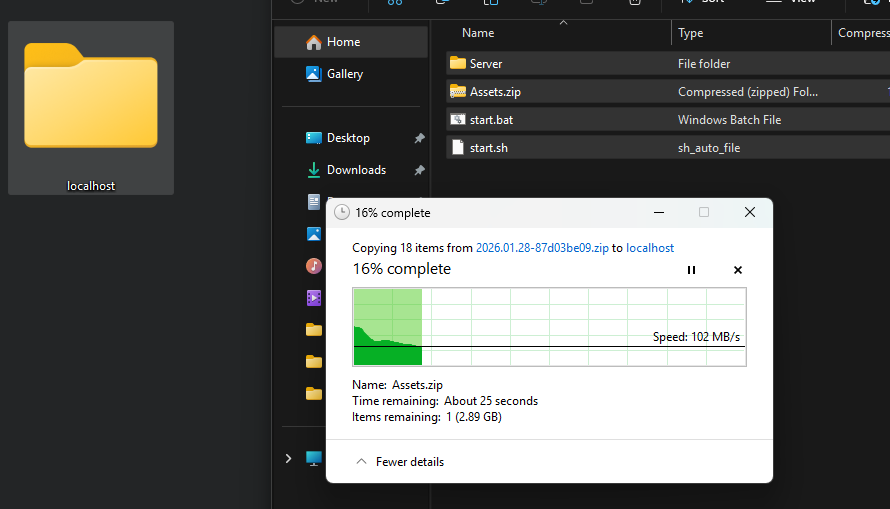
2. Launching the Server
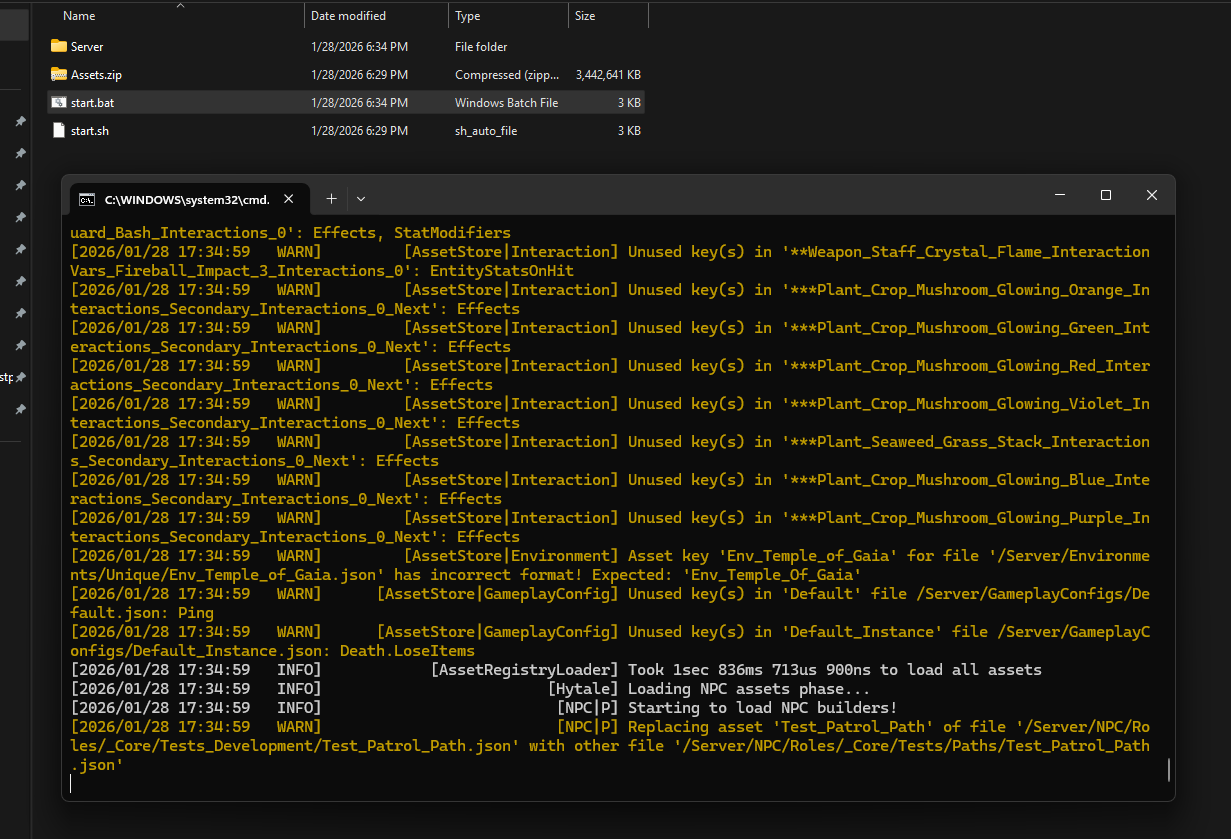
To start the server, you don’t need complex commands. The downloaded files include a startup script.
- Locate
start.batin your server folder. - Double-click it to run. This script will automatically download the necessary server jar and assets, then launch the server.
3. Authentication
The first time you run the server, you need to authorize it with your account.
- Look at the console. It will ask you to authenticate.
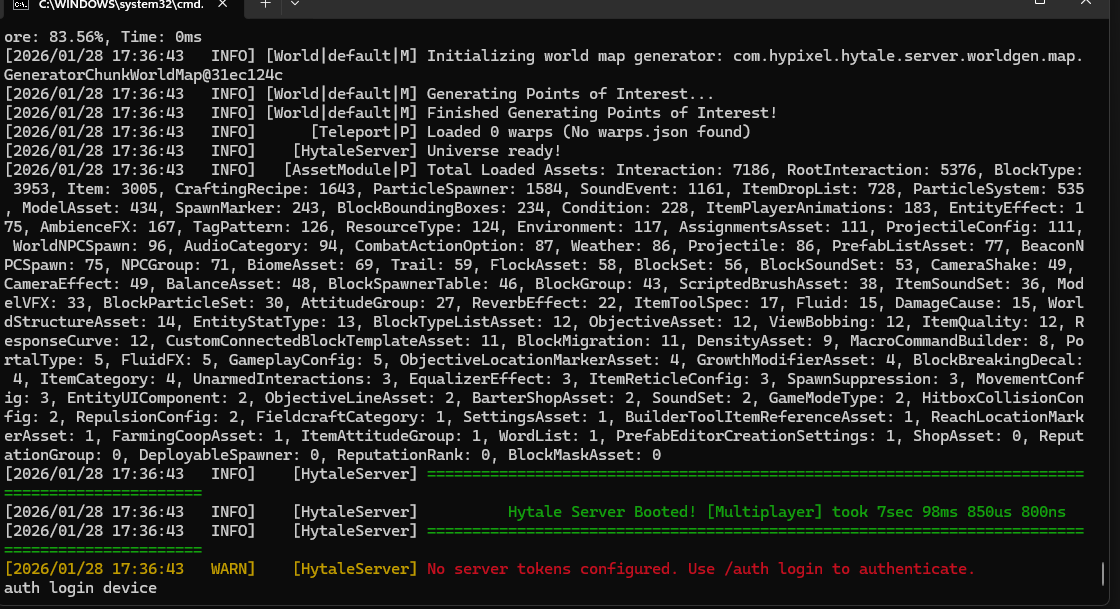
- Hold
Ctrland click the link displayed in the console (or copy and paste it into your browser).
- In your browser, log in and click Approve to authorize your server.
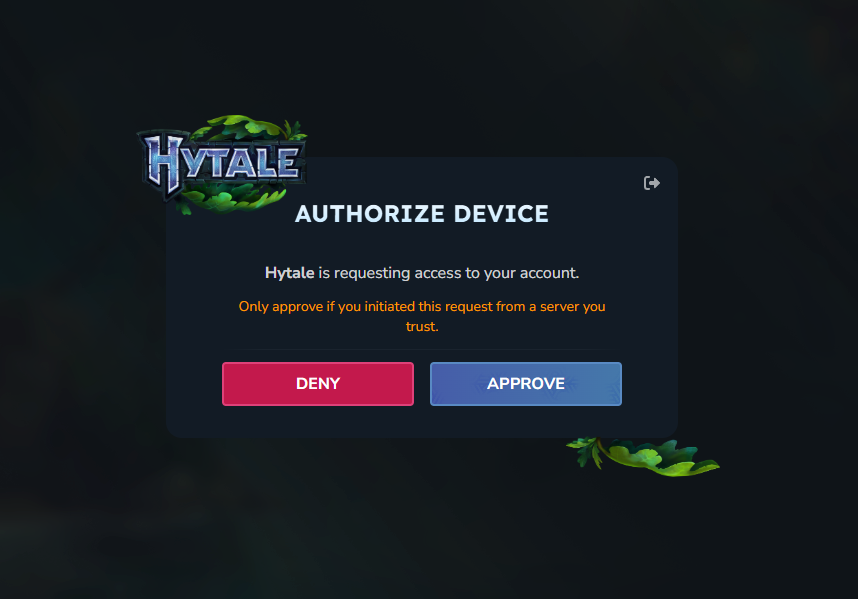
- Once done, the server will finish loading.

4. Connect to Your Server
To play locally:
- Open Hytale.
- Go to Servers > Add Server.
- Enter
localhostas the address.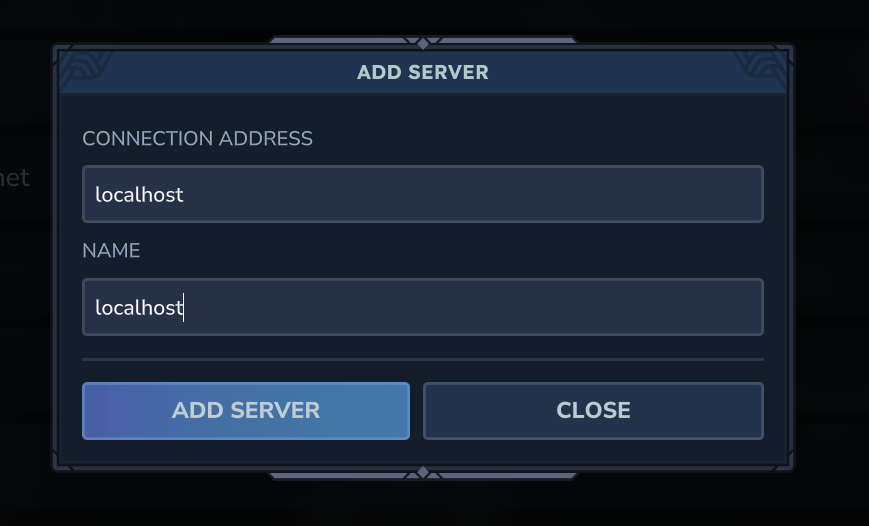
5. Share with Friends (playit.gg)
To let friends join without port forwarding:
- Download playit from playit.gg.
- Run the program and click the link to link it to your account.
- Create a Hytale tunnel.
- Send the generated public address (e.g.,
cool-server.playit.gg) to your friends.
Settings & Optimization
- RAM: You can edit
start.batto change memory settings (-Xmx) if you have more RAM available. - Backups: Regularly backup your server folder.
Troubleshooting
Server closes immediately?
Ensure you have the latest Java installed (check the Oracle link below).
Authentication fails?
Make sure you copy the full link from the console and that you own the game.
Uninstall
To remove the server, simply delete the server folder.

Downloads & Links
- Hytale Downloader — Official Hytale server downloader
- playit.gg — Easy port forwarding tool
- Oracle Java 25 — Download the latest Java version
- Hytale.com — Official Hytale website